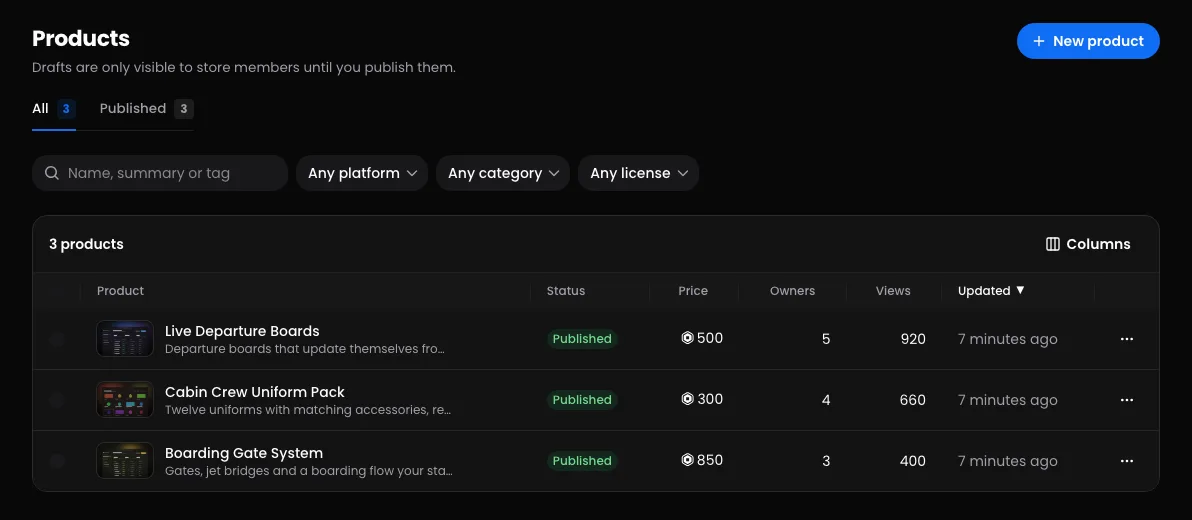
Every product has a status. It decides who can see the product and whether it's on sale. This guide explains each status, the Needs attention list, and how to move a product from one to another.
The statuses
Status
Who can see it
Listed for sale
People who own it
Draft
Your team
No
Keep it, and can download it
Published
Everyone, on your storefront and the marketplace
Yes
Keep it
Archived
Your team
No
Keep it, and can download it
Suspended
Your team; hidden from everyone else
No
Keep it, but downloads are paused
Deleted
Nobody, not even your team
No
Keep it, and can download it from their library
You'll find a product's status at the top of its pages. On your Products list, tabs sort products by status: All, plus Needs attention, Published, Drafts, Archived and Suspended whenever there's something in them. Your sidebar links to the main views under Products. The list is sorted by name. Select a column's heading to sort by it instead, and your list opens that way next time on this browser.
Drafts
Every new product starts as a draft. Only your team (and Enviglo staff) can open it, using Preview. The exception is a draft you've announced as an upcoming drop, whose page is public until it opens.
Submit it for Enviglo's review once its checklist is complete, and it goes live when it's approved. After that, Publish puts it live whenever you like, even after you've taken it down. You can also book it to publish itself with Schedule a drop. See Create and publish a product. On your Products list, a complete draft is tagged Ready to submit until it's been approved and Ready to publish after, one waiting for the team In review, and a booked one Publishing soon.
Published
A published product is on your storefront and across the marketplace. A published product with no image of its own is listed with a cover Enviglo draws for it, behind products that have a picture.
To take it down, press Unpublish to make it a draft again, or Archive.
Needs attention
Open Products, then Needs attention, to see products that are listed but can't be bought, or aren't selling as well as they could. Each one carries tags in the list. Point at a tag to read more.
Tag
What it means
What to do
Off-sale on Roblox
Roblox reports the developer product or game pass as not for sale, so the buy button can't do anything.
Put it back on sale on Roblox, then press Check Roblox on Delivery. Or take the product down.
No way to buy
It isn't free and has no developer product or game pass.
Link one on Delivery, or make it free on Pricing.
Not in browse
Its Robux price is 500,000 or more, which is how products get taken off sale, so it's kept out of browse, search and Google. It still shows on your store and its own page.
If it's for sale, lower the price on Pricing. If it isn't, unpublish or archive it.
Sold out
Its stock is zero. This one counts for drafts too.
Raise the stock, or clear it for unlimited, on Pricing.
Not in Google yet
It has no picture and barely a line about it, so search engines such as Google aren't asked to list it. It's still on sale, and still on Enviglo.
Add an image on Media, or a couple of sentences to its description on Details.
No artwork
It's listed with a cover Enviglo drew, behind every product with a picture of its own.
Add an image on Media.
No summary
Cards and search results have nothing to show under the name.
Add one on Details.
Three more tags are for information only and don't put a product on this list: On sale, Publishing soon and Ready to publish.
Publishing, unpublishing, archiving and scheduling need the Publish products permission. There are three places to do it:
The Status box on a product's Overview or Details page: Publish, Unpublish, Archive, Restore and publish or Schedule a drop, depending on its status.
The menu at the end of a product's row on your Products list: Publish, Unpublish or Archive.
Several at once: tick products on your Products list, then press Publish, Draft or Archive in the bar at the bottom. Up to 250 products at a time. Any that can't change are skipped and named, with the reason, such as "already published" or what it still needs.
Archive a product
Archive a product you've stopped selling but want to keep. It's hidden from everyone outside your team, and owners keep their licenses and downloads.
Archived products still count towards your plan's product limit.
Codes for an archived product stop working until it's published again.
To bring one back, press Restore and publish in its Status box, which needs the publishing checklist complete. To bring it back as a draft instead, tick it on your Products list and press Draft in the bar at the bottom.
Delete a product
Deleting needs the Delete products permission.
In your store's dashboard, open Products, pick the product, then open Details.
At the bottom, under Delete this product, press Delete product.
Read the confirmation, then press Delete product again.
To delete several, tick them on your Products list and press Delete in the bar at the bottom.
What happens depends on whether anyone has ever had a license for it, including one that was later revoked:
If so, the product comes off your store and out of your dashboard, but everyone who owns it keeps it. Their license, purchase record and downloads all stay, and their library marks it No longer sold.
If not, it's removed for good, along with its images, files and reviews.
You can't undo a delete. A few other things to know:
A deleted product no longer counts towards your plan's product limit.
A drop booked for it is cancelled.
A deleted product that people own keeps its developer product and game pass IDs, so games that check ownership keep working. Those IDs can't be used on another product in your store.
Deleting doesn't change anything on Roblox. If your game still offers the developer product, take it off sale on Roblox.
Suspended by Enviglo
The Enviglo team can suspend a product that breaks the rules. It's hidden everywhere until they restore it.
Its Status box says it was suspended by Enviglo, shows the Reason, and links to Notices and appeals.
You can't publish, unpublish, archive or delete it.
Owners keep their licenses, but can't download it while it's suspended.
It's listed under Suspended products on your store's Notices page, with an Appeal button. A moderator reads your appeal with the report behind the decision, and you hear back either way.
Does unpublishing or archiving affect people who own it? No. They keep their license, and can still download it from their library.
Will republishing make it New again? No. The New label counts from the first time a product was published.
Why can't anyone see my published products? Check whether your store is paused. While it is, none of its products show publicly, and previews say "This store is paused". Owners and admins reopen it under Settings, then Storefront, in Store status. See Store settings.
Why was deleting refused? A suspended product can't be deleted: "Enviglo suspended this product, so it can't be deleted while that's being looked at. Contact support if you think it's wrong."