Give, revoke, restore and transfer licenses
Saved Sep 20, 2026 by @enviglo: Screenshots for the hub, keys, pricing, products and licenses
Changes from the version before
A subscription that has run out still counts as **Active** in this list. Its own page shows **Ran out**.+ 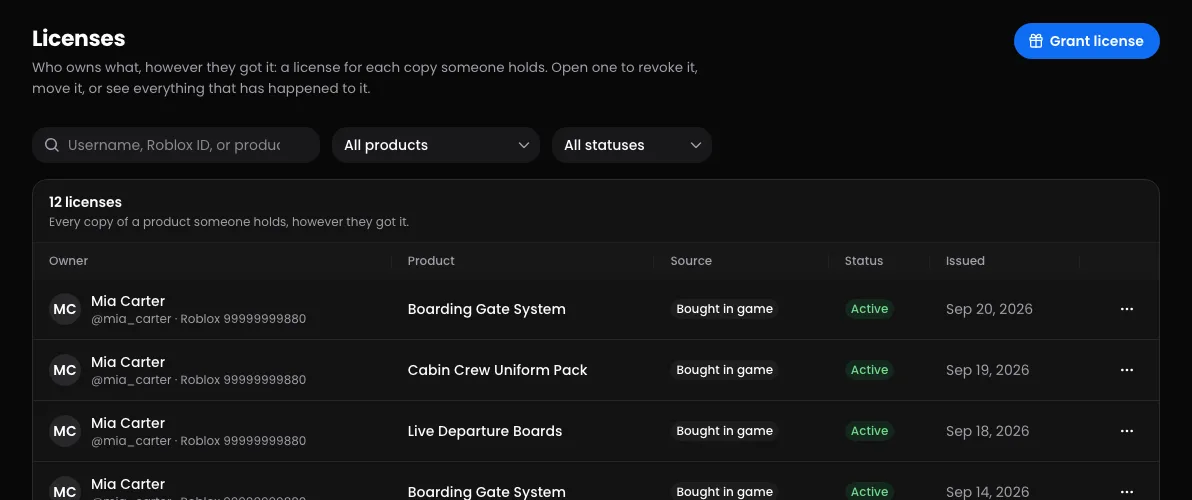+## Grant a licenseGranting gives someone a product for free: a giveaway, a support case, or a customer moving over from somewhere else.…
This version
The Licenses page lists every license in your store, and each license has a page of its own. This guide covers finding, granting, revoking, restoring and transferring licenses, and reading their history. It's for store owners and their staff. If you're new to licenses, start with Purchases and licenses.
Who can do what
Owners and admins can do everything here. Staff need these permissions:
| To | Staff need |
|---|---|
| See the Licenses page and each license | See sales and customers |
| Grant a license | Grant licenses |
| Revoke or restore a license | Revoke licenses |
| Transfer a license | Transfer licenses |
All four come with the Licenses permission, or with a custom role that includes them. See Roles and permissions.
When a manager has to approve
Your store can make staff ask a manager before they give products away (grants and restores), take them back (revokes) or move them (transfers). If that applies to you, the buttons read Ask to revoke, Ask to restore and Ask to transfer, the grant and transfer dialogs end in Ask for approval, and nothing changes until a manager says yes. You're notified when they decide. Owners, admins and staff with Approve changes act straight away. See Approvals.
Find a license
- In your store's dashboard, open Licenses.
- Search by name or username, Roblox ID or product name. A Roblox ID has to be the whole number.
- Narrow the list by product, or by status: All statuses, Active or Revoked.
Each row shows the Owner, Product, Source (how the owner got it), Status and the date it was Issued, newest first. Owners appear by their account name and username, with the Roblox ID they've linked. Select a product name to open the license, or an owner to open their customer page.
A subscription that has run out still counts as Active in this list. Its own page shows Ran out.

Grant a license
Granting gives someone a product for free: a giveaway, a support case, or a customer moving over from somewhere else.
- On the Licenses page, select Grant license.
- Choose the Product. Products that aren't published show their status under their name.
- In Recipient, enter their Enviglo username, or their Roblox ID if they haven't joined Enviglo yet.
- For a subscription, you can set Days of access (subscriptions) in whole days, up to 3,650. Leave it empty to use the product's own length.
- Add a Note if you like. It's private, and shows in the license's history.
- Select Grant license.
A customer's page has a Grant license button too, with them already filled in.
What the grant does depends on what they already hold:
- Nothing, or only a revoked license: they get a new license.
- A Buy more than once product: they get another license.
- A Subscription: the days are added to what's left.
- A One purchase product they hold an active license for: the grant is refused.
A Roblox ID linked to an Enviglo account gives the product to that account. A Roblox ID that isn't linked to anyone gets a placeholder account, which becomes theirs when they join and link it. Granting a bundle also grants the products inside it. The recipient is notified.
A grant is never a sale. It appears under Orders as a purchase marked Given. Deleted products, and products Enviglo has suspended, can't be granted.
Revoke a license
- Open the license from the Licenses page.
- Select Revoke, then confirm with Revoke.
The license leaves the owner's library, and their downloads and the product's Discord role, if it has one, go straight away. Games stop seeing it. The purchases behind it stay on record, and you can restore it later. The owner is notified that you took it back, so say why in a message if it needs explaining.
You can also revoke from the menu at the end of a row on the Licenses page, or on a customer's page. Those act straight away, without asking you to confirm.
Restore a license
Open the revoked license and select Restore, or use Restore in the row's menu. The same license comes back with its history, and so do the owner's downloads and Discord role.
Transfer a license
- Open the license and select Transfer. From the list, use Transfer to someone else in the row's menu.
- In New owner, enter their Enviglo username or Roblox ID.
- Select Transfer.
The current owner loses access and is told it was moved. The new owner gets the license, with its downloads and Discord role, and a notification of their own. The license keeps its history, and the purchases behind it don't change. A Roblox ID that isn't linked to anyone gets a placeholder account.
- You can only transfer an active license.
- You can't transfer to someone who already holds an active license for the product, unless it's a Buy more than once product.
- The previous owner can buy the product again, which gives them a new license.
A license's page
The top of the page shows the product, its status (Active, Revoked or Ran out), who owns it, how they got it and since when.
- History: everything that has happened to the license, newest first.
- Purchases: what was paid or given for it, each opening its purchase page. A purchase made for someone other than the current owner, such as before a transfer, says who it was for.
- Owner: links to their customer page.
- License: the Product, Status, Copies (for products bought more than once), Access until or Ran out (for subscriptions), the date it was Revoked, How they got it and the License ID. The Transfer, Revoke and Restore buttons are here too, if your permissions allow them.
What the history means
Entries that name someone show their username. Anything a manager approved also says Approved by and their name.
How it began:
- Bought in game: a purchase in your game made it. The line under it shows the receipt, or that your game or the in-game hub recorded it.
- Given by …: a team member granted it, with their note if they left one. Given by … from Discord means they used the Discord bot.
- Redeemed the code …: the owner used one of your codes.
- Claimed for free: the owner added a free product to their library.
- Came with a bundle: it came inside a bundle they got.
- Given by Enviglo: the Enviglo team gave it to them.
- Brought over from myPod: it was imported from myPod.
What happened since:
- Moved from … to …: it was transferred. The line under it says who by: By its owner for a customer's own transfer, a team member, the Discord bot, or Through the API for one of your API keys.
- Revoked by … or Restored by …: a team member revoked or restored it. Revoked through the API and Restored through the API mean one of your API keys did.
- Revoked: they're banned from the store: you banned the owner and took back what they own, or they bought it in game while banned.
- … more days or Renewed: a subscription got more time. The line under it says whether that was a purchase in game, a code, a bundle or a grant.
- The subscription ran out: its end date passed.
Staff can also grant, revoke and transfer with the Discord bot. See Discord bot commands. Every grant, revoke, restore and transfer is also recorded in your store's audit log.
Troubleshooting
- "No Enviglo user with that username. Use a Roblox ID for users who have not joined yet." Check the spelling, or use their Roblox ID.
- "Name already has product." It's a one-purchase product and they already hold an active license for it.
- "Name already owns product." The person you're transferring to already holds an active license for it.
- "That is already the owner." The new owner you entered already holds this license.
- "That product is not in this store, or can't be handed out right now." The product was deleted, or Enviglo has suspended it.
- "You do not have permission to do that." You're missing the permission for that action. The row menus show every action to anyone who can see the page, so ask an owner or admin if you need it.
- Grant license is greyed out. Your store doesn't have any products yet.